How to make text to speech sound more natural: speed, pauses and voice choice
Practical text to speech tips for natural sounding text to speech: choose the right voice, write for the ear, use punctuation for pauses and set a good speed.
The quickest way to get natural sounding text to speech is to start with a good voice and then write for the ear rather than the page. Pick a voice that suits you and your setting, use short sentences and punctuation to create pauses, spell out numbers, abbreviations and tricky names the way they’re said, and set a comfortable speed. Then listen back and adjust. Small changes to the text often make a bigger difference than switching voices.
These text to speech tips work for any app or voice, whether you use TTS to communicate every day, to listen to documents, or to make voiceovers.
Start with the right voice
Modern AI voices are far more natural than older robotic ones, but not every voice suits every use. Before you change anything else, make sure the voice fits.
Match the voice to the person and the setting
If you use text to speech to speak for yourself, the voice becomes part of how people hear you. It’s worth taking time to find one that feels right in age, gender, accent and tone. A warm, conversational voice suits chatting with friends; a clear, steady voice may suit work calls or appointments.
For narration or content, think about the listener. A calm voice works for explainers; a brighter, more energetic one may suit short social videos.
Narrow down, then preview
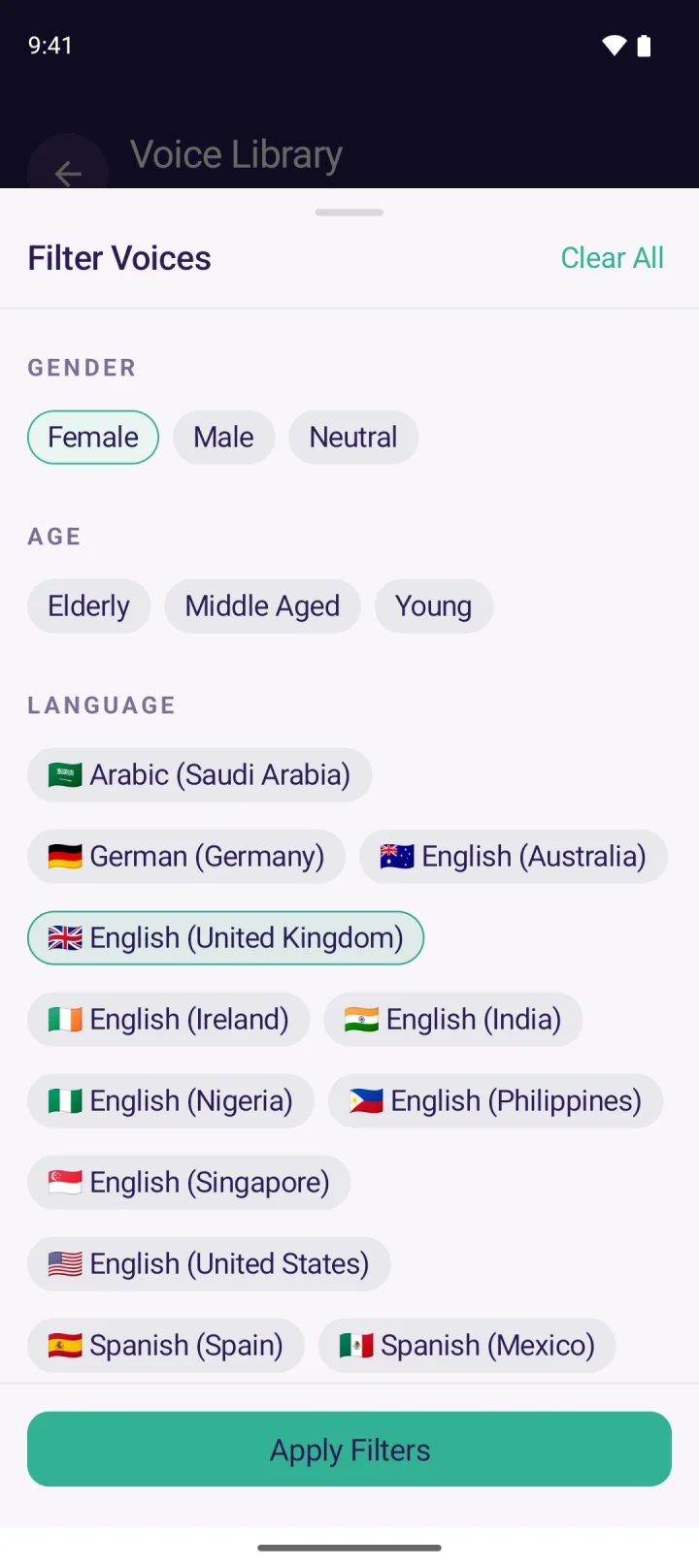
Big voice libraries can be overwhelming. Filters help. In MyVoice, you can filter the voice library by gender, age (young, middle aged or elderly) and language or accent, then preview any voice before choosing it. With 278 AI voices across 15 languages and 24 regional accents, including US, UK, Australian, Indian, Irish and Nigerian English, it’s worth trying a handful before you settle. You can also hear every voice on our homepage without installing anything.
Preview with your own words
Default sample sentences are designed to sound good. Your real sentences may not. Preview shortlisted voices with the kind of thing you actually say, including names, numbers and questions, and pick the one that handles them best.
If you want a wider look at which voices sound most human right now, see our roundup of the most realistic AI voices in 2026.
Write for the ear, not the page
Text to speech reads exactly what you give it. Text that looks fine on screen can sound clumsy out loud. These habits help it sound more human.
Use shorter sentences
Long sentences with several clauses make any voice sound flat, because there’s nowhere natural to breathe. Break them up. “I’m running late. Can we start at half past?” sounds more natural than one long sentence joined with “and” and “but”.
Use punctuation to create pauses
Punctuation is your main tool for rhythm:
- Commas add a short pause.
- Full stops add a longer pause and a falling tone.
- Question marks usually make the voice rise at the end, so use them for real questions.
- Exclamation marks can add energy, but use them sparingly.
- Line breaks or new sentences give a clear break between ideas.
If a line sounds rushed, adding a comma or splitting it into two sentences is often all it needs.
Spell out numbers, dates and abbreviations
Most voices handle common numbers well, but they have to guess at ambiguous ones. Is “1/2” a half or the first of February? Is “St.” street or saint? Remove the guesswork:
| Instead of | Try |
|---|---|
| 3:30pm | half past three |
| 1/2 | a half |
| Dr. Patel | Doctor Patel |
| approx. | about |
| 10k | ten thousand |
| ASAP | as soon as possible |
Acronyms that are said as words (like NASA) are usually fine. Acronyms said letter by letter can help with spaces or full stops, such as “G P” or “S L T”, if a voice tries to pronounce them as a word.
Use phonetic respellings for names
Unusual names, place names and brand names are where text to speech most often stumbles. If a voice gets a name wrong, try spelling it the way it sounds. For example, “Siobhan” might come out better as “Shiv-awn”, or “Niamh” as “Neeve”. It looks odd written down, but it sounds right, and that’s what matters.
Some developer tools support SSML (Speech Synthesis Markup Language, a W3C standard) for fine control over pronunciation and pauses. Most everyday apps don’t need it: careful wording gets you most of the way.
Get the speed right
Speed has a big effect on how natural speech sounds. Too fast and it’s hard to follow; too slow and it sounds laboured.
- For conversation, aim for a pace close to your listener’s natural speech. If people often ask you to repeat yourself, try slowing down a little.
- For listening to long documents, many people gradually increase the speed as they get used to a voice.
- For noisy places or listeners with hearing loss, a slightly slower pace helps.
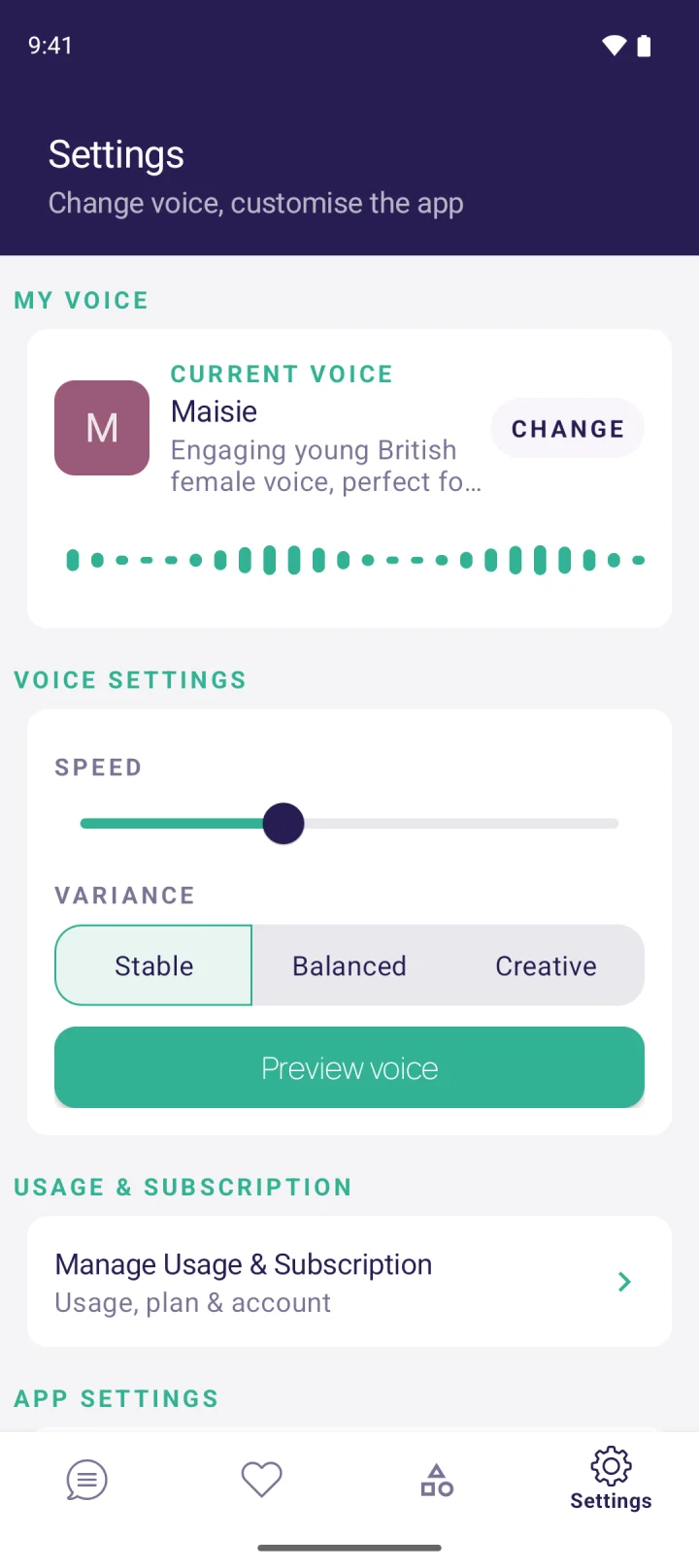
In MyVoice, you can adjust the speech speed (and the pitch, for on-device voices), and change the text size so what you’re typing is easy to read. Make small changes and test each one rather than jumping to extremes.
Choose how much variation you want
Modern AI voices don’t read the same sentence in exactly the same way every time, and many apps let you decide how much they vary. In MyVoice this is the Variance setting for AI voices:
- Stable gives the most consistent delivery. Phrases you say often, like greetings or “Could you speak more slowly, please?”, sound the same each time, which many people find reassuring.
- Creative lets the voice be more expressive, with more variety in tone and emphasis. It suits storytelling, chatting with friends or anything where a little personality helps.
- Balanced sits in between and is a good place to start.
If a voice sounds flat, try moving towards Creative. If it occasionally stresses the wrong word or sounds a bit too dramatic, move towards Stable. Our guide to variance, temperature and style in AI voices explains what’s going on under the hood.
Split long text into chunks
A long block of text read in one go is tiring to listen to, and it gives the listener no chance to respond. Break it up:
- Speak one or two sentences at a time in conversation.
- Use paragraphs for longer passages, with one idea in each.
- For voiceovers, record or generate scene by scene so you can redo one part without redoing the whole script.
Live word highlighting, which MyVoice shows as text is spoken, also makes it easy to see where a line goes wrong so you know exactly what to change.
Test by listening
The only real test of natural sounding text to speech is to listen. Read along as it plays and note anything that jars: a stressed word in the wrong place, a missing pause, a mispronounced name. Fix the text, play it again, and repeat.
It helps to listen with fresh ears. Something that sounds fine after twenty plays may still trip up someone hearing it for the first time. If you can, ask a friend or family member to listen too.
Save the phrases that work
Once you’ve got a sentence sounding just right, you shouldn’t have to rebuild it every time. Saved phrases mean your best versions, with the right spellings, pauses and wording, are always one tap away.
In MyVoice, you can save phrases, mark favourites and organise them into categories, so things like introductions, medical details, orders at a café or answers to common questions are ready to speak instantly. For people who use text to speech to communicate every day, this is often the single biggest step towards conversations that feel natural, because there’s less waiting while you type. You can read more about this in our guide to AAC or on our page for AAC users.
A quick checklist
Before you speak or publish, run through this:
- Does the voice suit me, the listener and the setting?
- Are the sentences short enough to breathe?
- Do commas and full stops fall where I’d pause?
- Are numbers, dates and abbreviations written the way they’re said?
- Do names sound right? If not, respell them.
- Is the speed comfortable for the listener?
- Have I listened back at least once?
FAQ
Why does my text to speech sound robotic?
Usually it’s a mix of an older or lower-quality voice and text written for reading rather than listening. Try a modern AI voice, shorten your sentences and add punctuation where you’d naturally pause.
How do I make TTS sound more human?
Choose a natural AI voice that fits the setting, write short conversational sentences, use commas and full stops for rhythm, respell tricky names phonetically and set a moderate speed. Then listen and adjust.
How do I fix mispronounced names in text to speech?
Spell the name the way it sounds, for example “Neeve” for “Niamh”. Test a few spellings until it sounds right, then save the phrase so you don’t need to fix it again.
What is the best speed for text to speech?
There’s no single best speed. For conversation, a pace close to natural speech works well. For long documents, many people prefer it a little faster once they’re used to a voice. Adjust in small steps.
If you’d like to try these tips with a wide choice of voices, MyVoice is available on Android, and you can learn how to get started in our guide to using text to speech on iPhone and Android.
Download MyVoice
Try for free
Natural AI voices, saved phrases, and full accessibility support on iOS and Android.