The simplest talking app for an elderly parent who can't speak
How to choose and set up a simple text to speech app for an elderly parent who has lost their voice: what to look for, how to make the phone easier to use, and the phrases to save first.
The simplest talking app for an elderly parent is one with one main screen: a big box to type in, a big Speak button, and their most-used phrases one tap away. If they can read and type, a text to speech app such as MyVoice (Android and iPhone) or Apple’s free Live Speech can work well, especially once you’ve set it up for them with large text and saved phrases. If they struggle with reading or spelling, for example after a stroke, a symbol-based app or a speech and language therapist’s advice may suit them better.
We make MyVoice, so we’ve tried to be fair about when it’s the right choice and when it isn’t.
What to look for in an app for an older person
- One main screen. The fewer menus and screens, the less there is to get lost in.
- Large text and large buttons. Both what they type and the buttons they press should be easy to see and hit.
- Saved phrases. Tapping “I’d like a cup of tea, please” is far easier than typing it every time.
- A voice that suits them. An older person may not want to sound like a 25-year-old. Look for a choice of ages and accents.
- No ads. An ad popping up mid-sentence is confusing and stressful.
- Works on the phone or tablet they already have. A familiar device is easier than a new one.
- Nothing to remember. No logins or passwords to get in the way.
Is a text app right for them?
A text to speech app works best for someone who can still read and type reasonably well, for example after throat surgery, with a condition such as MND/ALS or Parkinson’s affecting their speech, or with a voice that tires quickly.
It may not be the right fit if:
- Reading or spelling is hard, for example with aphasia after a stroke. Our guide to communication after a stroke explains the options, and a speech and language therapist (SLT) can assess what will work.
- Memory or confusion is the main difficulty. Picture boards, or a short list of phrases on paper, may be easier.
- Using a touchscreen is very difficult. An SLT or AAC service can advise on other ways to access a device.
If you’re not sure, ask their GP to refer them to an SLT. They can trial different tools with your parent.
Setting up MyVoice for a parent
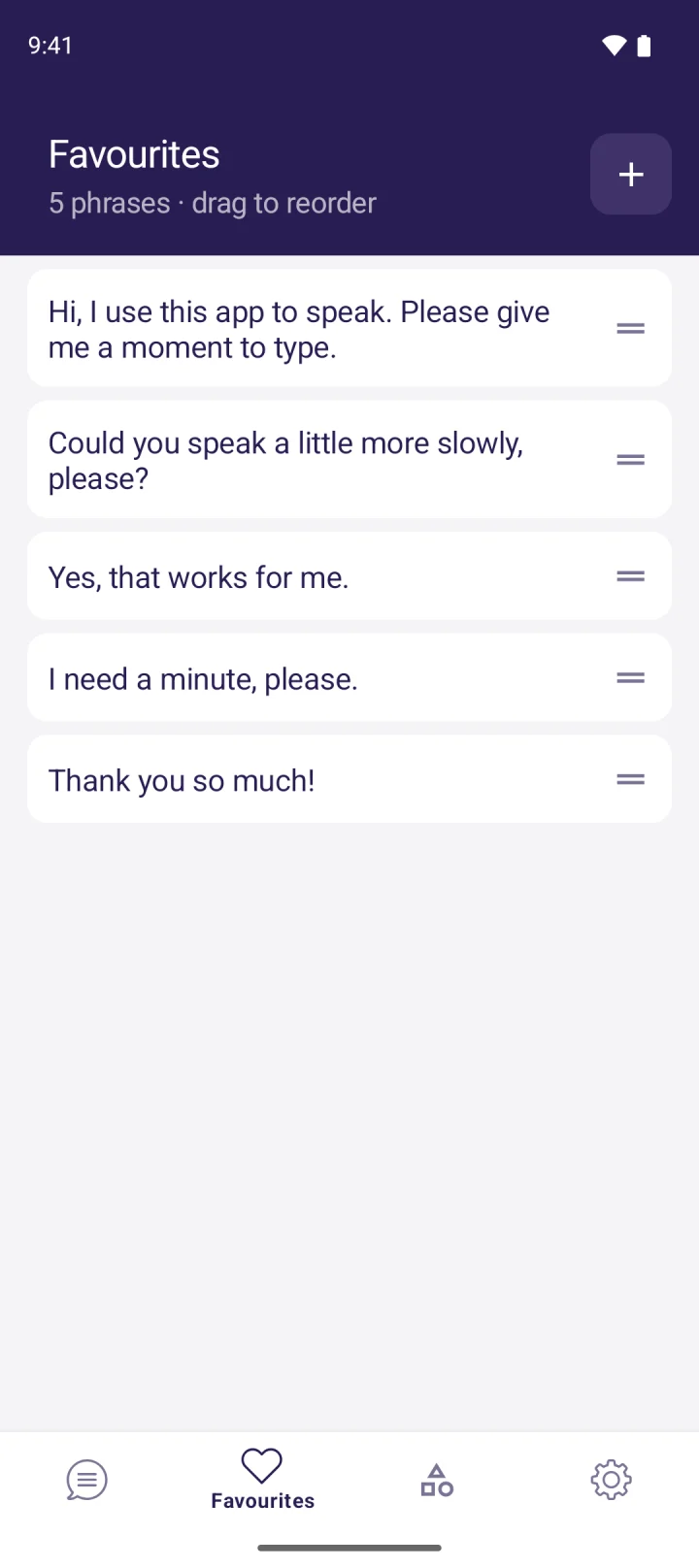
MyVoice has one main screen: type, tap Speak, and it’s read aloud, with each word highlighted as it’s spoken. To make it as simple as possible:
- Install it on their phone or tablet, and open it once together. On iPhone and iPad, it needs an internet connection. On Android, the on-device voices also work without one.
- Choose a voice with them. Filter by gender, age and accent, and let them pick one they’re happy to be heard in. You can hear every voice first.
- Make the text bigger in Settings, so what they type is easy to read, for them and for the person they’re talking to.
- Set it to clear after speaking, so the box is empty and ready for the next thing they want to say.
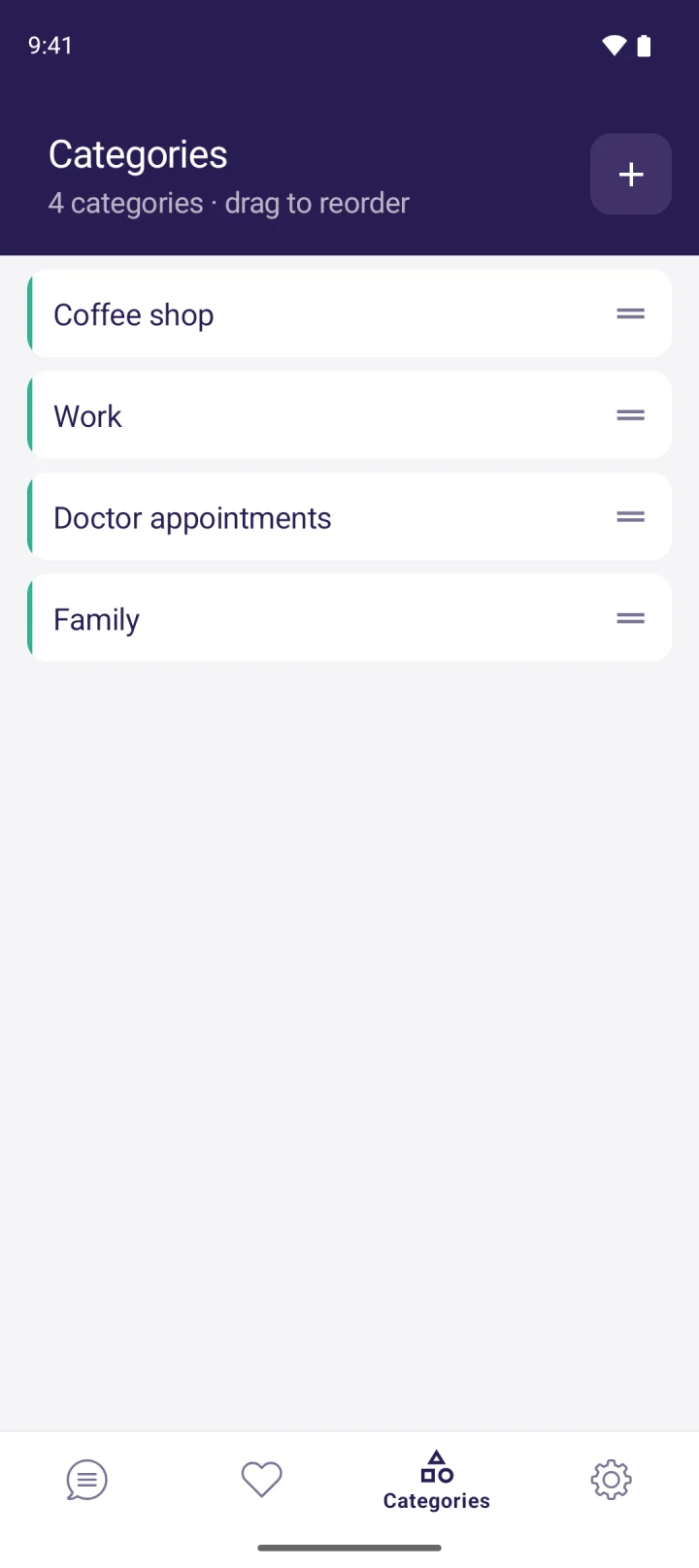
- Add their phrases as favourites, grouped into a few simple categories, such as “Home”, “Family” and “Doctor”.
- Practise together for a few minutes, and leave a short written note of the steps by the phone.
MyVoice has no ads, and the free plan includes every AI voice for 3,000 characters a month (about 600 words). For daily use, Lite is $2.99 a month. See pricing.
Phrases to save first
- “I can’t speak, so my phone is talking for me. Please be patient.”
- “Yes.” / “No.” / “Thank you.” / “Please wait.”
- “I’d like a cup of tea, please.”
- “I’m in pain.” / “I need the toilet.” / “I’m tired.”
- “Please call [name].”
- “Could you speak a little more slowly, please?”
- “I love you.”
Make the phone itself simpler
- iPhone and iPad: Assistive Access. In Settings > Accessibility > Assistive Access, you can set up a simplified home screen with large buttons and only the apps you choose. Check the app you choose can be added to it.
- Samsung phones: Easy mode. Settings > Display > Easy mode gives a simpler home screen with larger icons.
- Any phone: larger text and display. Increase text size and display size in the phone’s display settings, and turn the volume up.
- Put the app on the home screen, in the same place every time, and remove apps they don’t use.
- Use a tablet if a phone is too small. The MyVoice iPhone app also runs on iPad, and the Android app works on Android tablets.
- Add a loud Bluetooth speaker if they’re often in a noisy room or with someone who’s hard of hearing.
Tips for the family
- Give them time. Typing takes longer than talking. Don’t finish their sentences unless they want you to.
- Talk to them, not about them. Even if they’re typing, they can hear and understand you.
- Keep the phone charged and within reach. A charger by their chair and their bed helps.
- Check in after a week. Add phrases they’ve found themselves typing often, and remove ones they never use.
- Have a backup. A notepad and pen, or a printed card of key phrases, for when the battery runs out.
FAQ
What’s the easiest talking app for an elderly person?
An app with one simple screen, large text and saved phrases. MyVoice and Apple’s Live Speech are both type-and-speak tools. Set one up for them, with their most-used phrases saved, before they need it.
Can my parent use a talking app without typing much?
Yes. Save the things they say most as favourites, so they can speak them with one tap. Many people find a dozen phrases cover most of their day.
Is there a free talking app for elderly people?
Yes. Live Speech is built into iPhone, and MyVoice has a free plan with no ads, including unlimited on-device voices on Android.
What if my parent can’t read or spell well any more?
A text-based app may be frustrating. Ask their GP for a referral to a speech and language therapist, who can recommend picture-based tools or other options.
Download MyVoice
Try for free
Natural AI voices, saved phrases, and full accessibility support on iOS and Android.